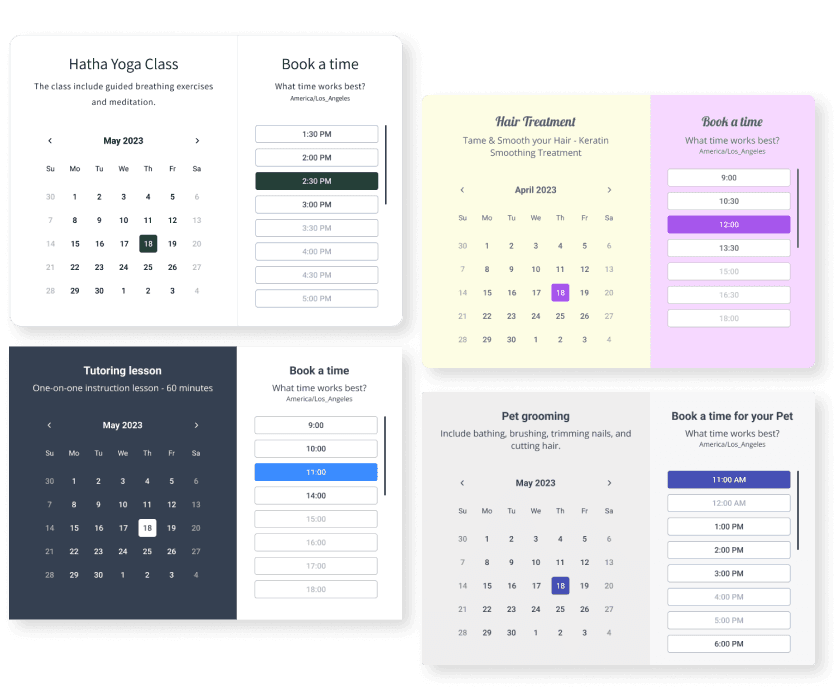

Steps to Add a Appointments App on a Zoho Site
Create your customized Appointments app, match your website's style and colors, and add Appointments to your Zoho page, post, sidebar, footer, or wherever you like on your site.
How To Add a Appointments App on Zoho:
Create a Free Appointments App
Start for free nowCopy HTML Code
Your code block will be available once you create your app
Open Zoho Editor
In the Zoho editor, navigate to the page where you would like to install POWR Appointments.- Click + Add Section on the area where you would like to install Appointments.
Add Code Snippet Element
In the Elements section scroll down to Others and click on the Code Snippet element.Paste HTML Code
1. Under Code Name: enter a name for the code snippet to help you identify the code later.
2. Under Paste Your Code: add the HTML code provided in Step 1.
3. Click Ok to add the code snippet.Preview Site
The plugin will not be visible in the Zoho editor. Preview or publish the page to see POWR Appointments. Note: The blue Edit Icon icon seen above POWR Appointments will only be visisble to you as the plugin owner.
Not sure if our Appointments app is right for you? Find out more about its features and integrations.
See the detailsRemove the Guesswork of Building Your Brand
Begin Building Brand Identity From Your Website
Congratulations on publicizing your business online with Zoho!
The next step is often gaining website visitors and making sales, but how?

Now You Have To Make Your Elements Unique
Some small business owners try to build an Appointments app by themselves or get an expensive web designer that claims they can build one.
Others try to enlist web design companies overseas that appear to offer Appointments apps for reduced prices or attempt to use open source code.
POWR Saves You Valuable Time
Also, customizing and updating an Appointments app involves even more time, and is likely to cause new issues.
As your company continues to expand, you're likely to encounter security issues, as hackers may attempt to manipulate vulnerabilities in the Appointments app. POWR has you covered!
POWR supports high-volume sites on Zoho and prioritizes the security of our Appointments app, as well as all 60+ apps, to keep any bad actors at bay.

Our Appointments comes with a team of expert engineers that work constantly for you, making sure your Appointments is always working perfectly.
CASE STUDY: Rbia Shades wins big with POWR
After Rbia launched its website, they were looking for a solution to add new contacts for outreach.
They found POWR while looking for a popup solution on their site and started to see immediate results.
Rbia started to see success with POWR Popup almost immediately, adding over 600 new contacts in the first 90 days.
They then realized that there was a full suite of other solutions they could use to improve their online experience for site visitors.
Soon, Rbia embedded an Instagram Feed app on their website and noticed site visitors who interacted with the app doubled the time spent on their page while growing their followers to over 11k on Insta at the same time.



All POWR apps are built for peak-performance.
See apps in action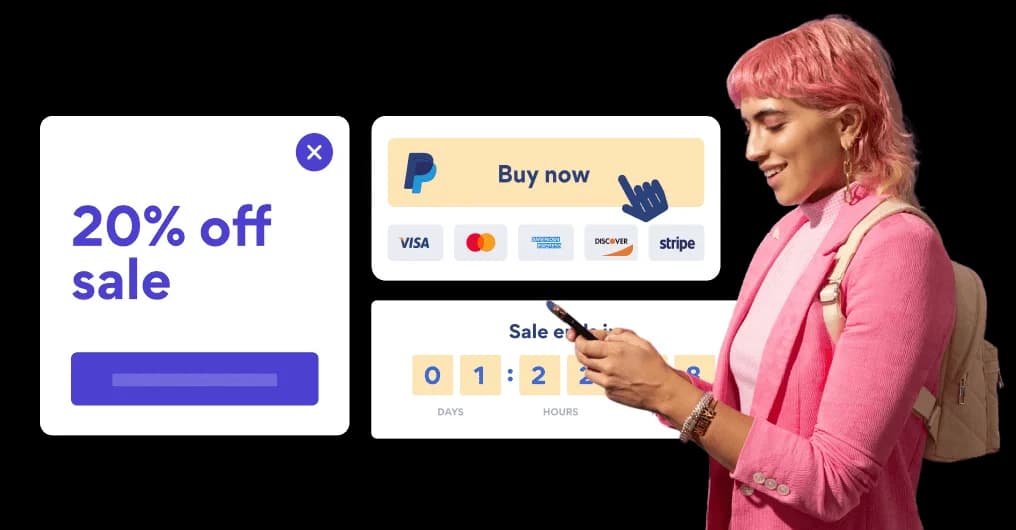

Trusted by the best in the biz!
POWR has helped over a half million businesses on every continent
(besides Antarctica, because of course not)


Frequently Asked Questions
Learn more about how to add POWR apps to your website.
Yes, any POWR app will work perfectly on any website. What’s better, is the patented POWR Live Editor is the same regardless of the app.
- Easily add more than one (for free)
- Edit to your needs directly from your live site
- Changes are made instantly
Absolutely! The POWR Appointments widget is optimized for mobile, ensuring that it looks great and functions smoothly across all devices, including phones and tablets.
This optimization enhances user experience, contributing to higher engagement rates on your Zoho site.
POWR Appointments allows you to edit every detail such as fonts, colors, borders, and spacing directly from the editor, ensuring your Appointments perfectly match your brand's identity.
This flexibility makes it easy to integrate and align with your site's look and feel.
Adding Appointments to your Zoho site is fully outlined above and straightforward with no coding required.
Simply follow POWR's setup guide, which is as easy as copy/pasting the provided code snippet into your site's HTML.
This ease of installation makes it convenient for Zoho site owners to implement Appointments and gather feedback from their audience.
Using POWR Appointments on your Zoho site offers numerous benefits, including enhanced customization options and easy installation without coding.
These features help improve your site's user engagement by allowing visitors to provide valuable feedback, leading to better online growth.