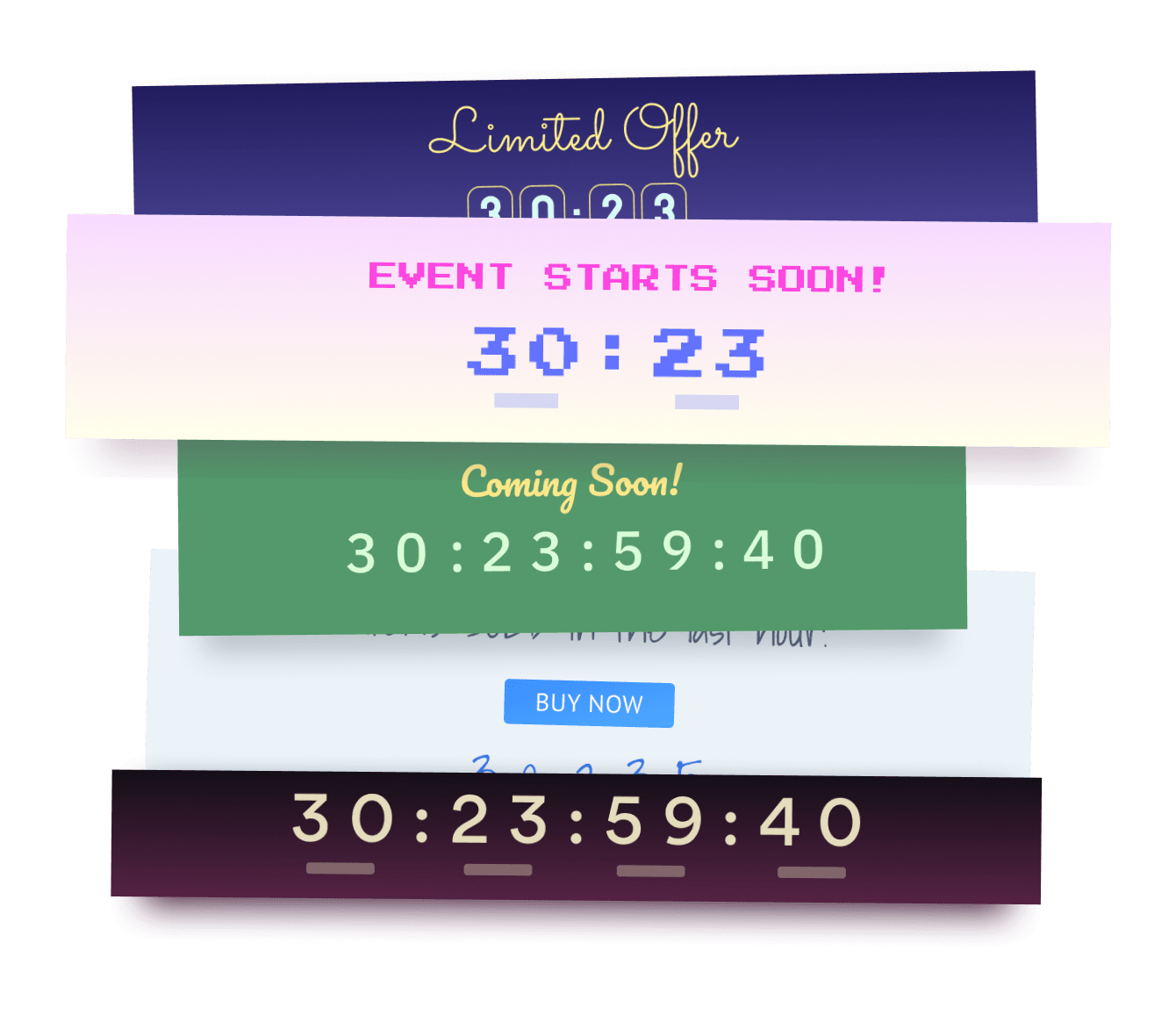

Steps to Add a Countdown Clock App on a Muse Site
Create your customized Countdown Clock app, match your website's style and colors, and add Countdown Clock to your Muse page, post, sidebar, footer, or wherever you like on your site.
How To Add a Countdown Clock App on Muse:
Create a Free Countdown Clock App
Start for free nowDownload .mucow File
Place the File
In the Muse Editor, go to File and select Place.Open .mucow File
Find the downloaded .mucow file on your computer, and click Open.Add POWR Countdown Clock
Click anywhere in the Muse Editor to add POWR Countdown Clock to the page.Preview in Browser to Edit
1. To edit Countdown Clock, go to File and click Preview Page in Browser.
2. Click on the Edit Icon to open the POWR Editor.
3. In the POWR Editor, click Import Existing Countdown Clock and find your saved Countdown Clock.
Need to know more about features and integrations of our Countdown Clock app?
See the detailsRemove the Guesswork of Building Your Brand
A Solid Brand Identity Starts on Your Website
Congratulations on publicizing your business online with Muse!
The next step is often getting website visitors and making sales, but how?


Make Your Website Elements Unique
Some may first try to DIY a Countdown Clock app or 'knows a guy' that can build one in 'no time'.
Others attempt to find open source Countdown Clock apps, or companies abroad that claim to offer Countdown Clock apps at rock-bottom prices.
Save Time With POWR
Also, customizing and updating a Countdown Clock app involves even more time, and is likely to cause new complications.
As your company continues to expand, you're likely to face security issues, as hackers may attempt to manipulate vulnerabilities in the Countdown Clock app. POWR has you covered!


POWR has the most advanced security features, is built for scale, and currently supports high-volume sites on Muse and other similar platforms.

Furthermore, our team of talented engineers work nonstop to keep POWR apps like your Muse Countdown Clock up and running for you.
CASE STUDY: Rbia Shades wins big with POWR
Rbia Shades needed to expand beyond its region by bringing its products online. They needed a low-maintenance, non-techie solution.
After much research, they chose POWR as their no-code tool of choice.
Shortly after signing on with POWR, Rbia’s first step was to install a popup. They increased their contacts by over 250% (over 600 real contacts).
Soon after, they added our Social Feed app and grew their social media following to over 6000.
Next, they added a Media Slider as a visual way to quickly show their products to new site visitors as they entered their homepage to show how the accessories looked in real life. It showcases their products well and gave customers a great on-site experience.
In fact, they quickly found that visitors who interacted with POWR apps on their site stayed engaged 2.5 times longer than ever before.



Every POWR app works on any platform.
See apps in action

Trusted by the best in the biz!
POWR has helped over a half million businesses on every continent
(besides Antarctica, because of course not)


Frequently Asked Questions
Learn more about how to add POWR apps to your website.
Yes, any POWR app will work perfectly on any website. What’s better, is the patented POWR Live Editor is the same regardless of the app.
- Easily add more than one (for free)
- Edit to your needs directly from your live site
- Changes are made instantly
Absolutely! The POWR Countdown Clock widget is optimized for mobile, ensuring that it looks great and functions smoothly across all devices, including phones and tablets.
This optimization enhances user experience, contributing to higher engagement rates on your Muse site.
POWR Countdown Clock allows you to edit every detail such as fonts, colors, borders, and spacing directly from the editor, ensuring your Countdown Clock perfectly match your brand's identity.
This flexibility makes it easy to integrate and align with your site's look and feel.
Adding Countdown Clock to your Muse site is fully outlined above and straightforward with no coding required.
Simply follow POWR's setup guide, which is as easy as copy/pasting the provided code snippet into your site's HTML.
This ease of installation makes it convenient for Muse site owners to implement Countdown Clock and gather feedback from their audience.
Using POWR Countdown Clock on your Muse site offers numerous benefits, including enhanced customization options and easy installation without coding.
These features help improve your site's user engagement by allowing visitors to provide valuable feedback, leading to better online growth.